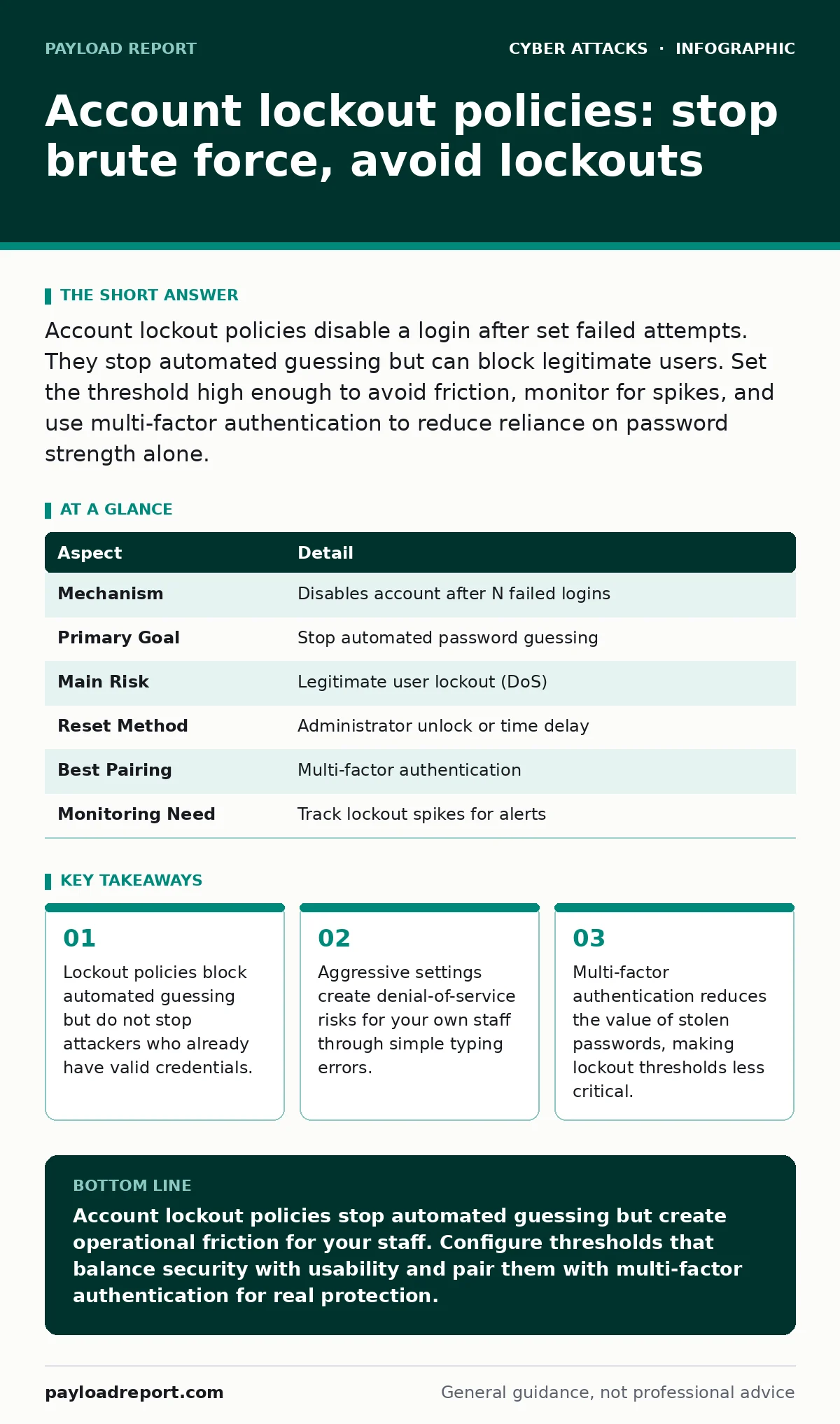
Account lockout policies disable a login after set failed attempts. They stop automated guessing but can block legitimate users. Set the threshold high enough to avoid friction, monitor for spikes, and use multi-factor authentication to reduce reliance on password strength alone.
Why account lockout policies matter
Imagine a burglar trying every key on a ring to open your front door. Eventually, they will find the right one unless the door jams after three wrong tries. Account lockout policies work exactly like that jamming mechanism. They disable a user account after a specific number of incorrect password attempts. This stops automated scripts from guessing passwords at speed.
These policies are a standard defence in depth. They do not prevent data theft if an attacker already has the correct password. They do not stop a user from sending a phishing email to steal credentials. They only slow down the process of guessing. You must understand this limitation before you configure the settings. The goal is to raise the cost of an attack, not to make it impossible.
At a glance
| Aspect | Detail |
|---|---|
| Mechanism | Disables account after N failed logins |
| Primary Goal | Stop automated password guessing |
| Main Risk | Legitimate user lockout (DoS) |
| Reset Method | Administrator unlock or time delay |
| Best Pairing | Multi-factor authentication |
| Monitoring Need | Track lockout spikes for alerts |
How account lockout policies work
The system counts consecutive failed login attempts. When the count reaches your defined threshold, the account enters a locked state. The user cannot log in until the lock is removed. Some systems reset the failure counter after a short period. Others require an administrator to manually unlock the account. You must choose which model fits your operational capacity.
The threshold is the number of wrong attempts allowed. A low threshold, such as 3 attempts, stops attackers quickly. It also locks out your own staff frequently. A high threshold, such as 10 or 20 attempts, reduces friction for users. It gives attackers more chances to guess. You must balance security against usability. The lockout duration is the time the account stays disabled. Short durations allow attackers to try again later. Long durations cause significant disruption for the locked user.
Who it affects and the hidden costs
You might think these policies only affect attackers. They affect your users every day. A user mistyping their password twice, then forgetting the correct capitalisation, can trigger a lockout. This happens often on mobile devices with autocorrect. It happens when users switch between keyboards with different layouts. It happens when they are rushed. Each lockout requires support time to resolve. This is a hidden cost that scales with your organisation size.
Administrators spend hours unlocking accounts. This time could be spent on higher-value security tasks. If you lock accounts too aggressively, your help desk becomes a bottleneck. Users grow frustrated and may circumvent security by writing passwords down. This creates a worse risk than the lockout itself. You must measure the impact of lockouts on your support team. If the volume is high, you need to adjust the threshold or improve user education.
What to do about account lockout policies
Set the threshold based on your risk appetite. A common starting point is 5 to 10 failed attempts. This blocks most automated tools while allowing for human error. Set the lockout duration to 15 to 30 minutes. This stops rapid guessing without permanently disabling the user. Ensure the failure counter resets after a short period, such as 10 minutes. This prevents a single bad session from locking the account indefinitely.
Monitor lockout events closely. A sudden spike in lockouts often indicates an attack. It can also indicate a misconfigured application or a password change gone wrong. Alert your security team when lockouts exceed a normal baseline. Do not rely on manual checks. Use automated monitoring to detect anomalies. Combine this with multi-factor authentication. This reduces the reliance on password strength. Even if an attacker guesses the password, they cannot log in without the second factor.
See also: DNS Filtering: What It Blocks and What It Misses
What people usually get wrong
Many teams set the threshold too low. They think 3 attempts is safer than 10. It is not. It creates more support tickets and more user frustration. It does not stop a determined attacker who has valid credentials. It only stops those who do not know the password. If an attacker has stolen credentials from a breach, the lockout policy does nothing. They log in on the first try. You must pair lockout policies with other controls.
Another common mistake is ignoring the reset logic. If the failure counter never resets, a single bad day can lock a user out permanently. They must call support every time. This is unsustainable. Set a reasonable reset period. Also, do not assume lockout policies protect against dictionary attacks. These attacks use lists of common passwords. If a user has a common password, the attacker will find it before the lockout triggers. You must enforce strong password policies. See our guide on dictionary attacks for more on how these lists are built and why they remain effective.
Integrating with broader security
Account lockout policies are one layer. They must work with other controls. Multi-factor authentication is the most effective complement. It renders password guessing largely useless. If the attacker has the password but not the token, the lockout policy is irrelevant. Focus your efforts on deploying multi-factor authentication everywhere. This reduces the need for aggressive lockout settings.
You should also monitor for unusual login patterns. A login from a new country or an unusual device should trigger additional checks. This is often more effective than lockout policies. It detects compromise rather than just slowing down guessing. Consider using risk-based authentication. This evaluates the context of the login attempt. It can block suspicious logins without locking out the user. This provides a better user experience while maintaining security.
Reviewing and adjusting settings
Your environment changes. Your policies must change with it. Review lockout settings quarterly. Check the volume of lockout events. If it has increased, investigate the cause. Was it a password change? A new application? An attack? Adjust the threshold or duration as needed. Document your settings and the rationale. This helps during audits and incident response.
Ensure your documentation is clear. Users should know what happens when they are locked out. They should know how to get help. Clear communication reduces panic and support calls. Train your support staff on the unlock process. They should know how to verify the user's identity before unlocking. This prevents attackers from using social engineering to bypass the lockout. See our guide on smishing for how attackers use SMS to trick users and support staff.
Final considerations
Account lockout policies are a basic control. They are not a silver bullet. They stop automated guessing but nothing else. You must combine them with strong authentication, monitoring, and user education. Do not rely on them alone. Measure their impact on your operations. Adjust settings to find the right balance. Security is about trade-offs. Find the one that works for your team.
Regularly test your policies. Simulate a brute force attack in a test environment. Verify that the lockout triggers as expected. Verify that the unlock process works. Verify that monitoring alerts fire. This ensures the policy is effective when you need it. Do not assume it works because it is configured. Test it. See our guide on rainbow table attacks to understand why pre-computed hashes make password guessing faster and why lockout policies are even more critical in those scenarios.
Key takeaways
- Lockout policies block automated guessing but do not stop attackers who already have valid credentials.
- Aggressive settings create denial-of-service risks for your own staff through simple typing errors.
- Multi-factor authentication reduces the value of stolen passwords, making lockout thresholds less critical.
Account lockout policies stop automated guessing but create operational friction for your staff. Configure thresholds that balance security with usability and pair them with multi-factor authentication for real protection.
Frequently asked questions
Should I lock out accounts immediately after one failed attempt?
No. This creates excessive support burden and user frustration. It does not improve security significantly compared to a threshold of 5 or 10.
How do I prevent account lockout denial-of-service attacks?
Monitor for spikes in lockout events. Implement rate limiting on the login page. Use multi-factor authentication to reduce the value of account lockouts.
Do lockout policies work against password spraying attacks?
They work partially. Password spraying uses one password against many accounts. It stays below the per-account threshold. You need global rate limiting to stop this.
What is the best lockout duration?
15 to 30 minutes is typical. It stops automated scripts without permanently disabling the user. Adjust based on your operational capacity and risk tolerance.
How this guide was produced: written by the Payload Report editorial team with AI assistance, checked against the public references listed below, and reviewed when the facts change. See our editorial policy or report an error.