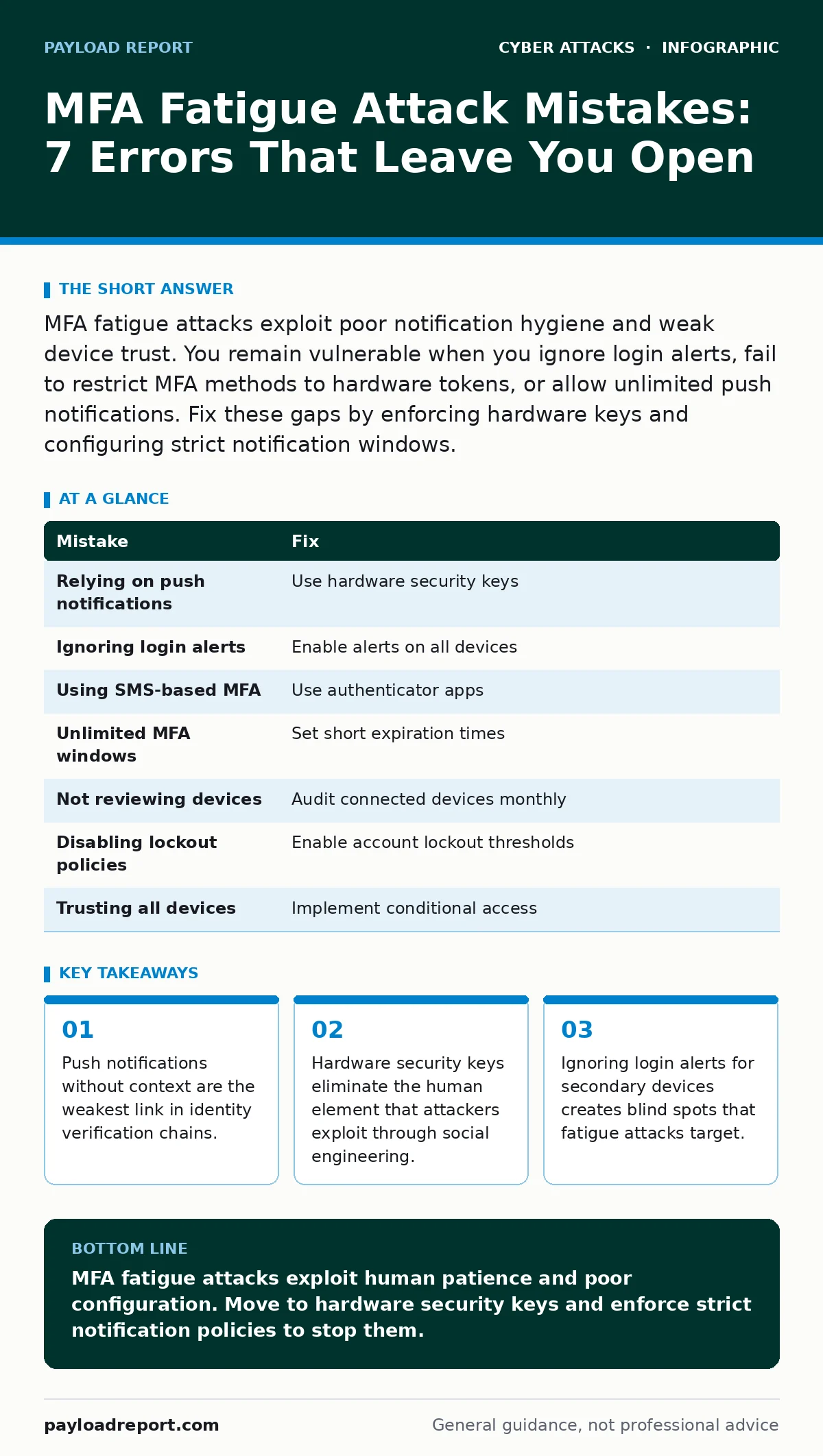
MFA fatigue attacks exploit poor notification hygiene and weak device trust. You remain vulnerable when you ignore login alerts, fail to restrict MFA methods to hardware tokens, or allow unlimited push notifications. Fix these gaps by enforcing hardware keys and configuring strict notification windows.
Mistake 1: Relying on push notifications for high-value accounts
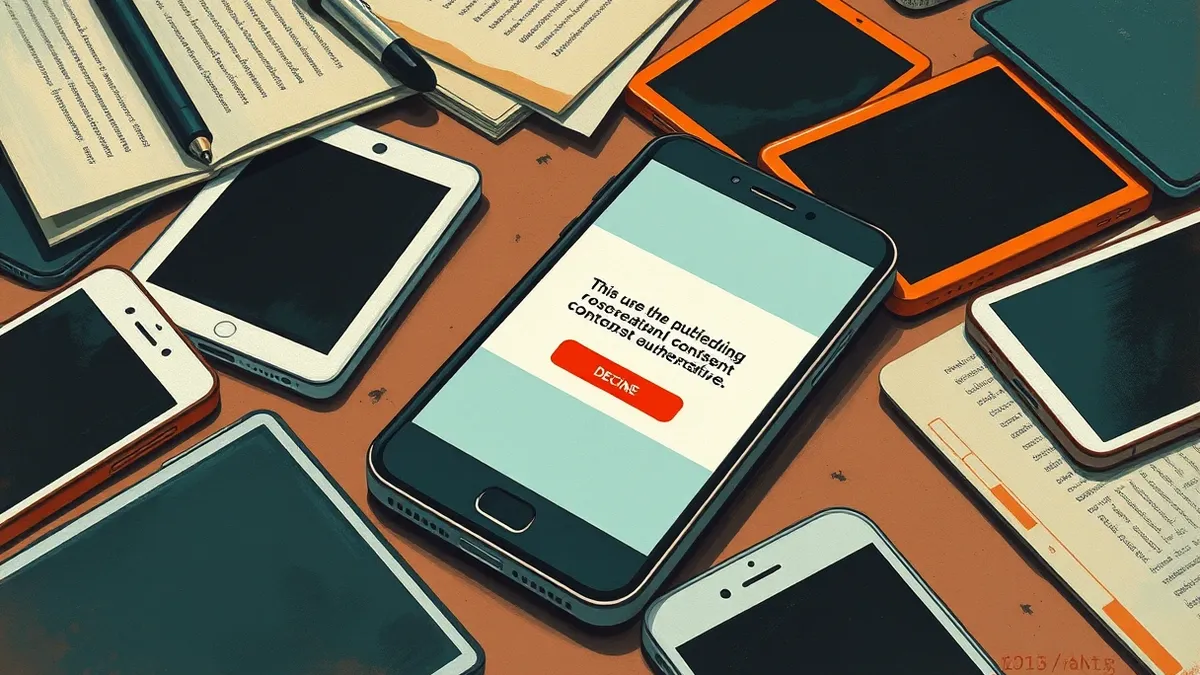
Push notifications send a simple approve or deny request to your mobile device. Attackers exploit this by sending rapid, repeated requests to overwhelm your attention. You eventually approve the request just to stop the noise. This is the core mechanism of MFA fatigue. The convenience of a single tap becomes a liability when the volume of requests exceeds your patience.
Why it hurts:
You surrender control of your account under stress. The attacker does not need to guess your password or phish your credentials. They only need you to click "Approve" once. This bypasses the second factor entirely because the action comes from a trusted device. Your identity verification collapses into a single human error.
The fix:
Disable push notifications for sensitive accounts where possible. Replace them with hardware security keys or time-based one-time passwords. Hardware keys require a physical presence to approve access. This physical barrier stops remote attackers from forcing a decision. You cannot fatigue a metal key.
Mistake 2: Ignoring login alerts for secondary devices
Your primary device shows a login attempt, but your phone or tablet remains silent. Many users disable notifications on secondary devices to reduce clutter. This creates a blind spot. Attackers target these silent channels because they know you will not see the request. You assume your primary screen is enough. It is not.
Why it hurts:
You lose situational awareness of your identity footprint. An attacker can trigger MFA requests on a device you rarely check. By the time you notice the unauthorized access, the damage is done. The separation between your attention and your security alerts allows the attack to succeed silently.
The fix:
Enable login alerts on all devices linked to your account. Do not mute security notifications. Configure your operating system to treat authentication requests as critical alerts. These alerts should bypass Do Not Disturb modes. You must see every request, regardless of which device receives it.
Mistake 3: Using SMS-based multi-factor authentication
SMS codes rely on your mobile network carrier to deliver the code. This channel is vulnerable to interception and SIM swapping. Attackers can redirect your phone number to a device they control. Once they have your SMS codes, they can bypass MFA entirely. The fatigue aspect comes when they trigger multiple code requests to confuse you or your carrier.
Why it hurts:
You trust a communication channel that you do not control. Your carrier’s infrastructure is a target. If an attacker compromises your phone number, your MFA is broken. SMS codes are also susceptible to interception via SS7 protocol flaws. This makes SMS the least secure method for verifying identity.
The fix:
Migrate away from SMS for authentication. Use an authenticator app that generates codes locally on your device. These codes never leave your phone. They are not tied to your phone number. This removes the carrier from the equation. You gain control over the generation of your second factor.
Mistake 4: Allowing unlimited MFA prompt windows
Your identity provider may allow MFA requests to remain active for hours. Attackers exploit this by sending a request and waiting. They do not need to spam you. They just need the window to stay open. You might approve a request days later, thinking it is legitimate. The stale request grants them access.
Why it hurts:
Time decay reduces the value of your consent. A request sent at midnight is not the same as one sent at 9 AM. Attackers use this delay to align with your working hours. They wait for you to be distracted. The long window turns a momentary lapse into a persistent vulnerability.
The fix:
Configure short expiration times for MFA requests. Set the window to five minutes or less. This forces the attacker to act immediately. You can easily ignore a request that expires quickly. This reduces the pressure to approve. It also limits the time an attacker has to manipulate you.
Mistake 5: Not reviewing connected devices regularly
You keep old phones, tablets, and laptops linked to your account. These devices may be lost, stolen, or compromised. Attackers use these forgotten devices to trigger MFA requests. You do not recognise the device name. You ignore the request as a glitch. The attacker gains access through a trusted, but unmonitored, channel.
Why it hurts:
Your attack surface grows with every connected device. Each device is a potential entry point. You cannot protect what you do not see. Old devices often run outdated software with known vulnerabilities. They are easy targets for malware that can trigger MFA requests automatically.
The fix:
Audit your connected devices monthly. Remove any device you do not actively use. Set up alerts for new device registrations. This ensures you know every device that can request access. It also helps you spot compromised devices quickly. Clean up your identity profile regularly.
See also: Login Alerts: Why They Fail and How to Make Them Work · Stop Crypto Stealers: The Hidden Risks and Practical Defences
Mistake 6: Disabling account lockout policies
You disable account lockout policies to avoid locking yourself out. Attackers exploit this by sending thousands of password guesses. They combine this with MFA fatigue. You receive constant notifications. You approve one to stop the noise. The attacker then uses the stolen credentials to access your account.
Why it hurts:
You remove a critical barrier against brute force attacks. Without lockout policies, attackers can test passwords indefinitely. The combination of password spraying and MFA fatigue is deadly. You are forced to choose between security and convenience. You usually choose convenience. The attacker wins.
The fix:
Enable account lockout policies with reasonable thresholds. Lock the account after five failed attempts. This stops the password guessing. It also reduces the volume of MFA requests. You must balance security with user experience. Too strict, and you lock out legitimate users. Too loose, and you invite attackers.
Mistake 7: Trusting all devices by default
You allow any device to approve MFA requests without additional verification. This is called "device trust." Attackers exploit this by compromising a device and using it to approve requests. You do not see the compromise. The device looks legitimate. Your trust is misplaced.
Why it hurts:
You assume device integrity equals user integrity. This is not true. A compromised device is a trusted attacker. You cannot distinguish between a legitimate user and a malicious actor using the same device. Your MFA becomes a single point of failure.
The fix:
Implement conditional access policies. Require additional verification for new devices. Check the device health and compliance status. Only allow trusted devices to approve MFA. This adds a layer of security. It ensures that the device itself is secure before granting access.
| Mistake | Fix |
|---|---|
| Relying on push notifications | Use hardware security keys |
| Ignoring login alerts | Enable alerts on all devices |
| Using SMS-based MFA | Use authenticator apps |
| Unlimited MFA windows | Set short expiration times |
| Not reviewing devices | Audit connected devices monthly |
| Disabling lockout policies | Enable account lockout thresholds |
| Trusting all devices | Implement conditional access |
Key takeaways
- Push notifications without context are the weakest link in identity verification chains.
- Hardware security keys eliminate the human element that attackers exploit through social engineering.
- Ignoring login alerts for secondary devices creates blind spots that fatigue attacks target.
MFA fatigue attacks exploit human patience and poor configuration. Move to hardware security keys and enforce strict notification policies to stop them.
Frequently asked questions
How do I know if I am under an MFA fatigue attack?
You receive multiple login requests in a short period from unfamiliar locations or devices. Check your login alerts for unusual activity.
Are hardware security keys immune to MFA fatigue?
Yes, hardware keys require physical possession and interaction. Attackers cannot remotely trigger approvals without the physical key.
Can I use biometrics to prevent MFA fatigue?
Biometrics add a layer of security but do not prevent fatigue. Attackers can still trigger requests. Biometrics verify who you are, not the context.
What is the best MFA method for remote workers?
Hardware security keys offer the highest security. Authenticator apps are a good alternative. Avoid SMS and push notifications for high-risk accounts.
How this guide was produced: written by the Payload Report editorial team with AI assistance, checked against the public references listed below, and reviewed when the facts change. See our editorial policy or report an error.