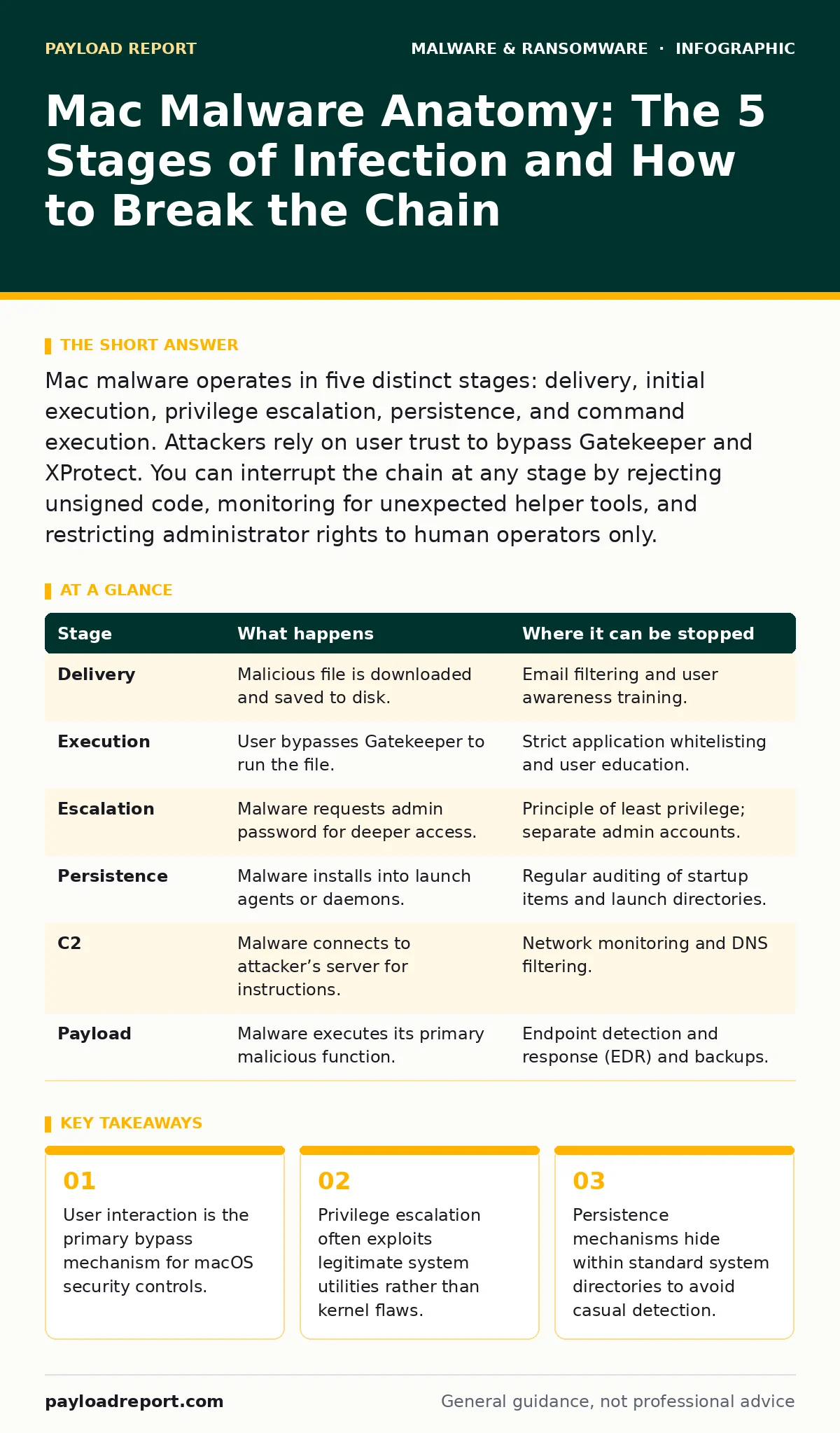
Mac malware operates in five distinct stages: delivery, initial execution, privilege escalation, persistence, and command execution. Attackers rely on user trust to bypass Gatekeeper and XProtect. You can interrupt the chain at any stage by rejecting unsigned code, monitoring for unexpected helper tools, and restricting administrator rights to human operators only.
The Delivery Vector: Beyond the Download
Mac malware rarely arrives through an exploit that silently installs itself. The initial stage relies on social engineering to place a malicious file on the disk. Attackers distribute these files via email attachments, compromised software update pages, or fake installers for popular applications. The file appears legitimate, often mimicking the icon of a trusted application.
The attacker relies on your assumption that a file with a familiar name is safe. They may use a double extension trick, such as archive.zip.exe, though macOS usually hides the extension by default. This obscurity prevents you from seeing the true nature of the file. The malware sits dormant until you interact with it.
Stage 1: Initial Execution and Gatekeeper Bypass
The infection begins when you attempt to run the downloaded file. macOS uses Gatekeeper to check if the application was notarised by Apple. If the file is unsigned or signed with an expired certificate, Gatekeeper blocks execution. The attacker anticipates this and instructs you to bypass the check.
You see a message stating the application cannot be opened because it is from an unidentified developer. The attacker’s payload includes instructions to right-click the file and select "Open". This action presents a second prompt. Clicking "Open" overrides Gatekeeper for that specific file. This is the first critical failure point. You are manually telling the operating system to trust unverified code.
Stage 2: Privilege Escalation via Authorization
Once the initial payload runs, it needs deeper access. Most malware cannot operate effectively with standard user permissions. It requires root access to modify system files, install kernel extensions, or hide processes. The attacker relies on the fact that many users have administrator accounts and know the password.
The malware triggers a system dialog requesting your password. This dialog looks identical to legitimate macOS prompts. It might claim it needs access to install a printer driver or update a codec. You enter your credentials, believing you are authorising a benign task. The malware captures this authorisation and executes its next stage with elevated privileges.
Stage 3: Persistence Mechanisms
Having gained access, the malware ensures it survives a reboot. macOS restarts frequently, so persistence is vital for the attacker. The malware installs itself into launch agents or launch daemons. Launch agents run when a user logs in. Launch daemons run at system startup, before any user logs in.
The attacker copies the malicious binary to a hidden directory, often within /Library or /System/Library. They then create a property list file that tells the system to launch this binary automatically. This file is signed and looks like a standard system component. If you do not monitor these directories, the malware reactivates every time you power on the device.
Stage 4: Command and Control Establishment
The malware now needs to communicate with the attacker. It establishes a command and control channel. This connection allows the attacker to send instructions and receive data. The malware may use standard protocols like HTTPS to blend in with normal web traffic.
The attacker relies on the difficulty of distinguishing malicious traffic from legitimate activity. The malware checks in periodically. If it detects a firewall or network monitor, it may go dormant. It waits for a signal to proceed. This stage is often silent. You see no pop-ups or performance drops. The only sign is unusual outbound network connections to unknown domains.
Stage 5: Payload Execution and Data Exfiltration
The final stage depends on the malware type. It could be a keylogger, a screen locker ransomware, or a remote access trojan. The malware executes its primary function. A keylogger records every keystroke. A remote access trojan allows the attacker to control your mouse and keyboard.
The attacker relies on the time between infection and detection. During this window, they harvest credentials, financial data, or personal files. They may encrypt your documents and demand payment. The damage is done before you notice anything wrong. The malware may also spread to other devices on the network, exploiting shared folders or weak credentials.
| Stage | What happens | Where it can be stopped |
|---|---|---|
| Delivery | Malicious file is downloaded and saved to disk. | Email filtering and user awareness training. |
| Execution | User bypasses Gatekeeper to run the file. | Strict application whitelisting and user education. |
| Escalation | Malware requests admin password for deeper access. | Principle of least privilege; separate admin accounts. |
| Persistence | Malware installs into launch agents or daemons. | Regular auditing of startup items and launch directories. |
| C2 | Malware connects to attacker’s server for instructions. | Network monitoring and DNS filtering. |
| Payload | Malware executes its primary malicious function. | Endpoint detection and response (EDR) and backups. |
Interrupting the Chain: Practical Defences
Stopping Mac malware requires breaking the chain at multiple points. You cannot rely on a single solution. Gatekeeper is a first line of defence, but it is easily bypassed by user action. You must assume that malicious files will reach your disk.
Monitor for unexpected privilege escalation requests. If an application you do not recognise asks for your password, deny it. Use a separate administrator account for system tasks. Do not use your daily user account for administrative work. This limits the damage if malware gains access.
Audit your launch agents and launch daemons regularly. Look for files you do not recognise. Check the path of the binary they point to. If a launch agent points to a temporary directory, it is suspicious. Remove it and delete the associated binary.
Network monitoring helps detect command and control traffic. Look for connections to unknown domains or unusual ports. Use DNS filtering to block known malicious domains. This prevents the malware from receiving instructions.
The Hidden Cost of Convenience
The biggest vulnerability in macOS is the design choice to prioritise user convenience over security. The system allows users to override security checks with a few clicks. This design assumes users are rational and informed. In reality, users are often rushed or confused.
Attackers exploit this gap. They rely on your willingness to bypass warnings to get software working. The cost of this convenience is a lower barrier for malware. You must accept that security requires friction. If a process is too easy, it is likely unsafe.
Potentially unwanted programs often use the same delivery mechanisms as malware. They may not be malicious, but they degrade performance and privacy. Treat them with the same suspicion. Browser hijackers and adware are often the first step toward more serious infections.
Computer viruses are less common on macOS than in the past, but they still exist. They rely on the same execution chain. The difference is in the payload. A virus replicates itself, while malware may just steal data. Both require user action to start.
Maintaining a Secure Environment
Security is not a one-time task. It is a continuous process. You must maintain your system to stay protected. Keep your operating system and applications updated. Updates patch known vulnerabilities that malware might exploit.
Use golden images for deploying new devices. This ensures every device starts with a known, secure configuration. It reduces the risk of pre-installed malware or misconfigurations. Regularly review your installed applications. Remove anything you do not use or recognise.
Be cautious with screen locker ransomware. It may not encrypt your files, but it locks you out of the device. It relies on your panic to pay the ransom. Do not pay. Use backups to restore your data. Backups are your last line of defence. If you have a recent, clean backup, you can wipe the device and restore your data without loss.
Key takeaways
- User interaction is the primary bypass mechanism for macOS security controls.
- Privilege escalation often exploits legitimate system utilities rather than kernel flaws.
- Persistence mechanisms hide within standard system directories to avoid casual detection.
Frequently asked questions
Can Mac malware infect other devices on my network?
Yes, once malware has access to your device, it can scan your local network for other vulnerable devices. It may exploit shared folders or weak credentials to spread laterally to other computers or servers.
Does turning off Gatekeeper protect me from all malware?
No, turning off Gatekeeper removes a layer of protection. It allows any application to run, regardless of its source. This increases your risk of infection. You should keep Gatekeeper enabled and only disable it for specific, trusted development needs.
How do I know if my Mac has been infected?
Look for unusual system behaviour, such as slow performance, unexpected pop-ups, or new applications you did not install. Check your network connections for unknown outbound traffic. Use security tools to scan for known malware signatures and suspicious processes.
Is macOS immune to computer viruses?
No, macOS is not immune to computer viruses. While the architecture makes some types of viruses less common, malware developers actively target macOS. The user base has grown, making it a more attractive target for attackers seeking financial gain or data theft.
How this guide was produced: written by the Payload Report editorial team with AI assistance, checked against the public references listed below, and reviewed when the facts change. See our editorial policy or report an error.