Most router vulnerabilities stem from configuration errors rather than software bugs. Leaving default credentials, exposing management ports, and disabling security updates create persistent entry points. Fix these by changing passwords, hiding admin interfaces, and enforcing automatic patching to reduce your attack surface.
Mistake 1: Retaining Default Administrative Credentials
Why it hurts: Manufacturers ship routers with well-known default usernames and passwords. Attackers use automated scripts to scan the internet for devices still using these credentials. Once inside, they gain full control over routing tables, firewall rules, and connected devices. This is a classic example of weak password policies where the barrier to entry is effectively zero.
The fix: Change the default username and password immediately upon installation. Use a unique, complex passphrase that differs from any other account you hold. Ensure the device supports multi-factor authentication for administrative access, as this adds a layer of security that brute-force attacks cannot easily bypass.
Mistake 2: Exposing Management Interfaces to the Internet
Why it hurts: Many users enable remote management features to access their router settings from outside their home or office. This exposes the administrative web interface directly to the public internet. Attackers can attempt authentication bypass vulnerabilities or exploit known flaws in the web server running on the router. The consequence is unrestricted access to your network infrastructure from any location.
The fix: Disable remote management features entirely. Access router settings only from within the local network. If remote access is absolutely necessary, restrict it to specific IP addresses and enforce strong encryption protocols. Consider using a virtual private network to create a secure tunnel rather than opening ports directly to the management interface.
Mistake 3: Ignoring Firmware Updates
Why it hurts: Router manufacturers regularly release firmware updates to patch security holes. Ignoring these updates leaves your device running vulnerable code. Attackers exploit these known weaknesses to install malware, redirect traffic, or create botnets. Effective patch management is not just about convenience; it is a primary defence against automated attacks that target unpatched systems.
The fix: Enable automatic firmware updates if the router supports it. If not, check for updates regularly and apply them promptly. Verify that the update comes from the manufacturer’s official source to avoid installing malicious firmware. Document the update history to ensure compliance with your risk-based vulnerability management strategy.
Mistake 4: Leaving Wi-Fi Protected Setup Enabled
Why it hurts: Wi-Fi Protected Setup (WPS) simplifies device connection by using a PIN code. This PIN is only eight digits long, making it susceptible to brute-force attacks. Attackers can guess the PIN in a short time and gain access to the Wi-Fi network without knowing the main password. This flaw bypasses the strength of the Wi-Fi encryption entirely.
The fix: Disable WPS in the router settings. Connect devices using the standard Wi-Fi password instead. If you need to connect legacy devices that rely on WPS, consider using a separate guest network with limited access. This isolates the vulnerable feature from your primary network resources.
Mistake 5: Using Weak Wi-Fi Encryption Standards
Why it hurts: Older encryption standards like WEP and WPA are broken and can be cracked with readily available tools. Even WPA2 has known vulnerabilities if weak passwords are used. Using outdated encryption exposes all data transmitted over the wireless network to interception. Attackers can capture traffic and decrypt it to steal sensitive information.
The fix: Use WPA3 encryption if your router and devices support it. If WPA3 is unavailable, use WPA2 with a strong passphrase. Disable WEP and WPA entirely. Regularly review connected devices to ensure no unauthorized users have gained access through weak encryption methods.
See also: Authentication Bypass Myths: What Security Teams Get Wrong
Mistake 6: Failing to Segment IoT Devices
Why it hurts: Internet of Things devices often have poor security practices and are prone to IoT device vulnerabilities. Connecting them to the same network as your computers and phones allows an attacker who compromises a smart bulb to potentially access your bank account. Lack of segmentation increases the attack surface by allowing lateral movement from low-security devices to high-value targets.
The fix: Create a separate guest network for IoT devices. Restrict this network’s access to the internet only, blocking communication with your primary network. This containment strategy limits the damage if an IoT device is compromised. Regularly audit devices on this network to remove unused or insecure gadgets.
Mistake 7: Disabling Firewall Protections
Why it hurts: The router’s firewall is the first line of defence against incoming attacks. Disabling it or configuring it loosely allows unsolicited traffic to reach your devices. Attackers can probe for open ports and exploit services running on your computers. This mistake effectively removes the barrier between your internal network and the hostile external environment.
The fix: Enable the firewall and ensure it is set to block all incoming connections by default. Only open ports for specific services that require external access, such as online gaming or remote desktop. Use application-level filtering if available to block malicious traffic patterns. Regularly review firewall logs to identify and block suspicious activity.
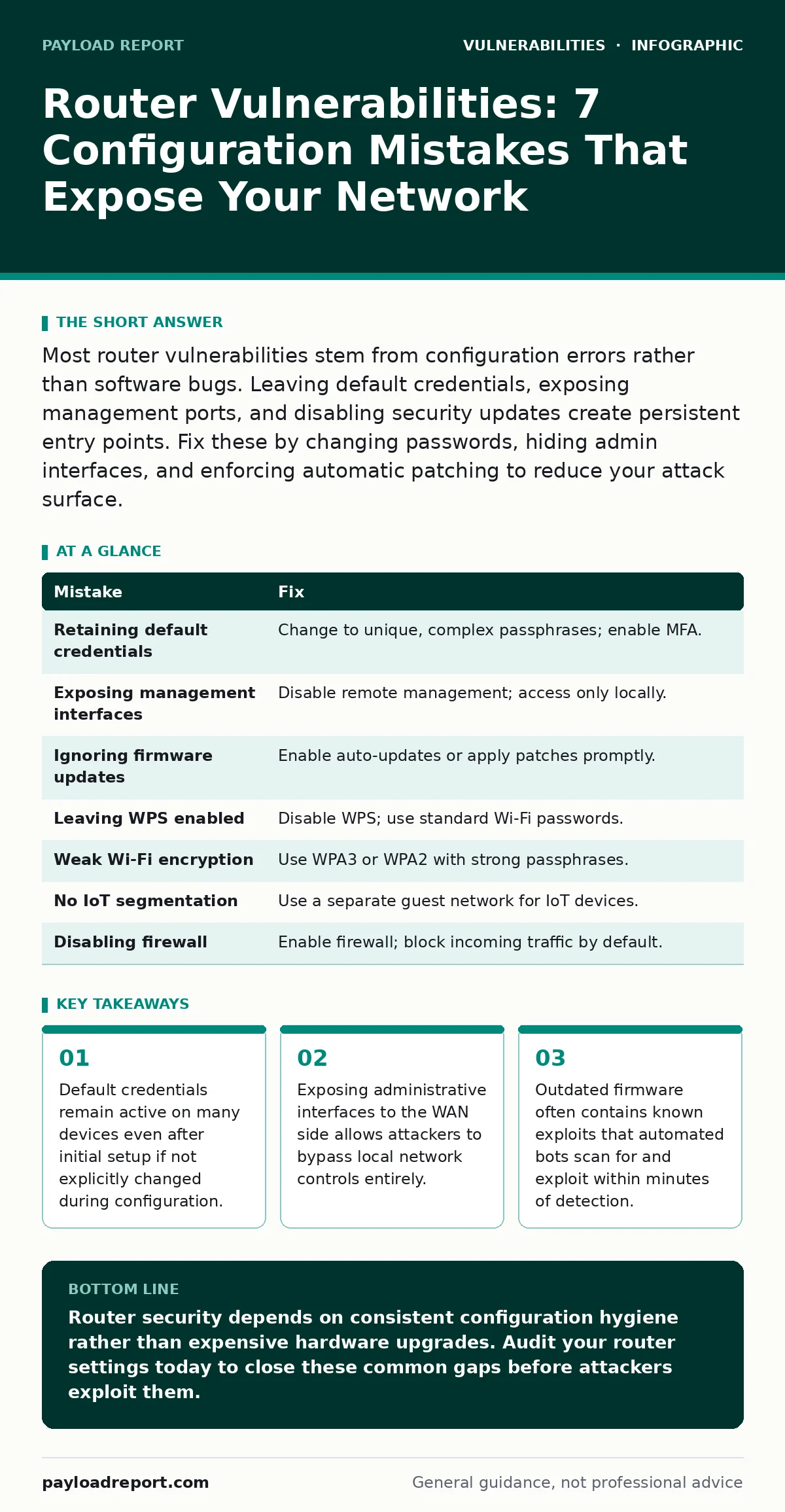
| Mistake | Fix |
|---|---|
| Retaining default credentials | Change to unique, complex passphrases; enable MFA. |
| Exposing management interfaces | Disable remote management; access only locally. |
| Ignoring firmware updates | Enable auto-updates or apply patches promptly. |
| Leaving WPS enabled | Disable WPS; use standard Wi-Fi passwords. |
| Weak Wi-Fi encryption | Use WPA3 or WPA2 with strong passphrases. |
| No IoT segmentation | Use a separate guest network for IoT devices. |
| Disabling firewall | Enable firewall; block incoming traffic by default. |
Key takeaways
- Default credentials remain active on many devices even after initial setup if not explicitly changed during configuration.
- Exposing administrative interfaces to the WAN side allows attackers to bypass local network controls entirely.
- Outdated firmware often contains known exploits that automated bots scan for and exploit within minutes of detection.
Router security depends on consistent configuration hygiene rather than expensive hardware upgrades. Audit your router settings today to close these common gaps before attackers exploit them.
Frequently asked questions
How do I know if my router has been compromised?
Look for unexpected changes in DNS settings, unknown devices on your network, or unusual traffic spikes. Resetting the router to factory settings may be necessary if compromise is suspected.
Can a router firewall protect against all attacks?
No, a router firewall primarily blocks unsolicited incoming connections. It does not protect against malware downloaded by users or attacks that originate from within the network.
Is it safe to use public Wi-Fi for sensitive tasks?
Public Wi-Fi networks are often unsecured. Use a virtual private network to encrypt your traffic and protect your data from eavesdropping on these networks.
How often should I change my Wi-Fi password?
Change your Wi-Fi password if you suspect a breach or when a device leaves your network. Regular changes are less important than using a strong, unique password.
How this guide was produced: written by the Payload Report editorial team with AI assistance, checked against the public references listed below, and reviewed when the facts change. See our editorial policy or report an error.